 XStream
Designer user guide
Create a Job by connecting operator ports, inspect structures and bounded samples, then export YAML for execution. Start Designer using the configuration reference. Its startup configuration supplies the local catalog, available targets, operator repository and optional Chat model API.
1. Find your way around
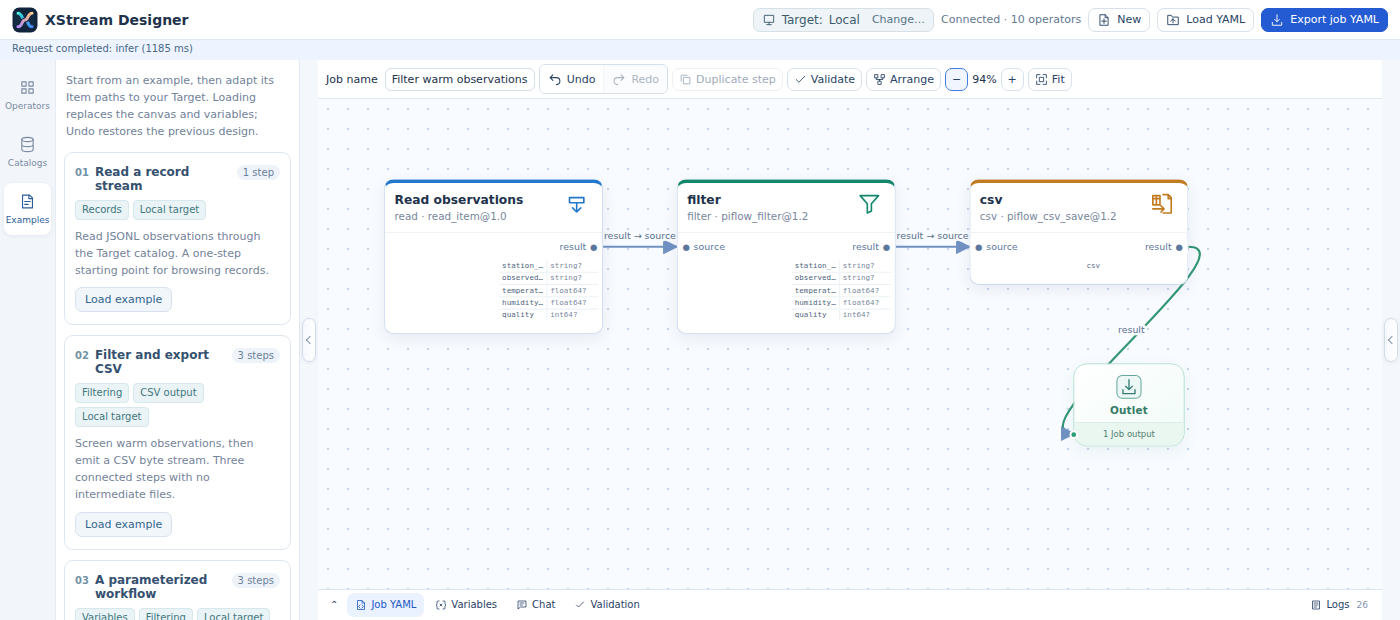
| Area | Use |
|---|---|
| Header | Confirm Target, create or load a Job, and export YAML |
| Left sidebar | Browse operators, catalogs and bundled examples |
| Canvas | Arrange steps and connect ports to the single Client Sink |
| Right sidebar | Edit the selected step, parameters and output previews |
| Bottom panel | Inspect Job YAML, edit variables, validate, read logs or use Chat |
The screenshots show a running Designer and its supplied weather example. The software interface is shown in its original English; catalog contents depend on host configuration.
2. Select Target and data
Target defaults to Local. Use the Target control to select a configured remote target and confirm the change. Target catalog then shows that target's catalog; other configured catalogs remain available separately. Expand a catalog, Dataset or folder to load its direct children.
Select an Item and one of its advertised views to create or configure item_source. A selection from Target catalog uses context:/dataset/item; another catalog uses an explicit remote URI. Folder expansion uses its triangle; readable containers may also offer their original bytes. Review Item paths when loading an example into another environment.
The exported designer.target remembers the design target. Execution uses the catalog of the receiving engine; the designer metadata does not submit or relocate a Job.
3. Build the processing chain
Canvas step borders use a consistent role palette: green for Source, blue for Transform and orange for Sink. Role badges use the same palette and distinct symbols; operator icons use the same role color. Authors supply the SVG path, without icon.color.
flowchart LR
  Item["Choose Item + view"] --> Read["item_source"]
  Read --> Process["Processing steps"] --> ClientSink["Client Sink"]
  Process -. "Edit parameters or inputs" .-> Preview["Update schema previews"]
  ClientSink --> Validate["Validate"] --> YAML["Export YAML"]
- Load an example from Examples, or add operators from the library.
- Click an output port, move to the destination input port and click to connect. Matching fixed View types connect; different fixed types are rejected with a message and a red preview. A
variantdeclaration at either end allows the connection, with concrete compatibility checked during inference and execution. Missing type metadata blocks connection until it loads. Rejected connections preserve existing bindings. Right-click cancels the pending connection. - Connect the desired final output to Client Sink. One step output port supplies the Job output.
- Drag steps to arrange them. Box-select multiple elements to move them together. Use Delete, Duplicate step, Undo and Redo as needed.
- Double-click a step to open its properties. A single click selects it without opening the sidebar.
Deleting multiple steps or replacing the design with an example opens a styled in-page confirmation. Cancel or Escape preserves the current design; confirmed changes can still be undone.
4. Set parameters, variables and descriptions
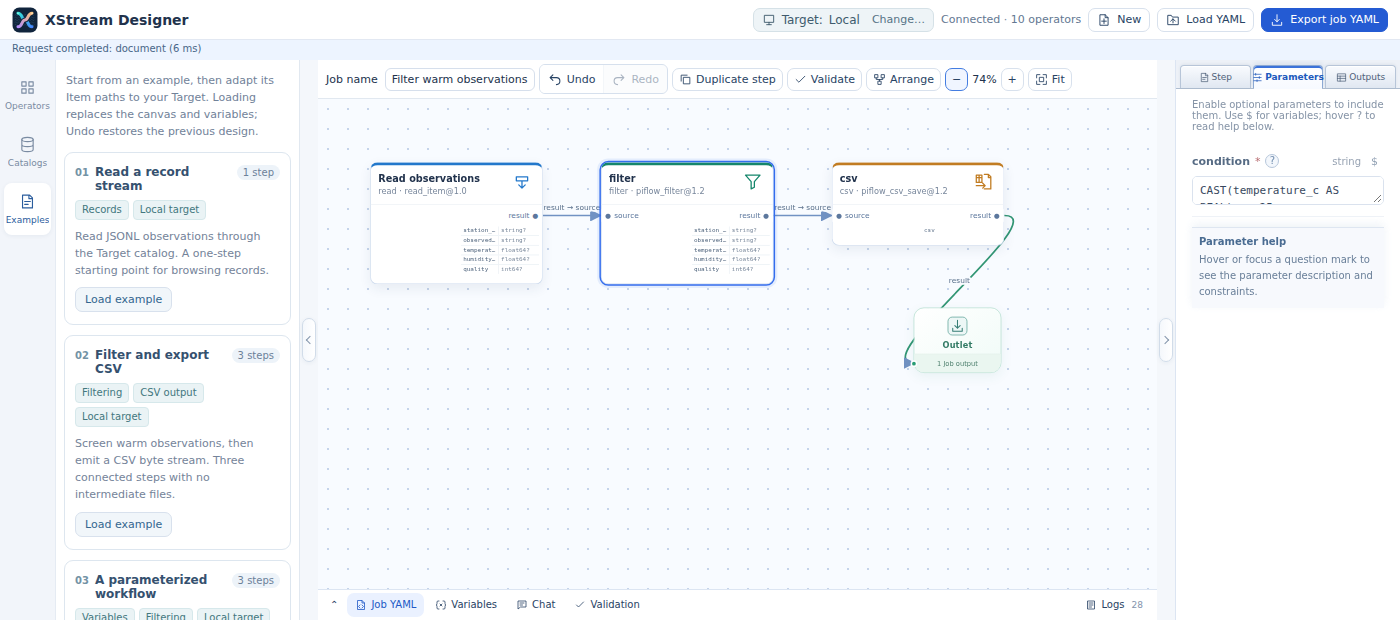
The right sidebar separates Step, Parameters and Outputs. Step contains the readable title and multiline description. Parameters presents typed controls using the operator's declaration. Hover over or focus the help marker to read its description in the panel.
Edits apply automatically. Use the bottom Variables tab for values referenced by the Job; variable substitution preserves numbers, booleans, lists and mappings. The bottom Job YAML stays synchronized with the canvas. See the Job reference for exact syntax.
5. Inspect schemas and samples
Schema inference follows affected stream dependencies when parameters or inputs change. Canvas steps display compact output schemas; the Outputs tab shows each port's expected structure and operator-provided sample. Samples are bounded, normally to 10 rows and 16 KiB per port. Record samples display as tables; binary samples use Base64. They are previews rather than results from the complete dataset.
Each port shows a compact View icon. Hover over it to read the complete type name; assistive technology receives the same label. Bytes use a [01] binary symbol, records a table, arrays stacked layers, Items stacked documents, and variant Views a purple diamond with a solid central dot. Every port declares one concrete type or variant. A variant declaration remains variant even when schema inference describes the concrete structure for an invocation. Loading metadata uses an ellipsis icon. Schema inference also works in drafts with a disconnected Client Sink; execution-ready export still requires its input connection.
Unknown schema is a valid inference outcome, for example when parsing bytes without enough structure information. An inference error is reported separately. Use Logs for details and verify variables and Item paths. Scientific selection examples are in scientific views.
6. Validate, import and export
Use Validate to check disconnected steps, missing output connections and input compatibility. Run this before export. Load YAML with Load YAML; use the matching variable values for the target environment.
Export job YAML opens a preview with Include designer information selected by default. That information preserves layout, Client Sink position, viewport and generator metadata. Copy, print or download from this preview. Execution uses the Job definition; the auxiliary layout is for restoring the editor.
7. Compose with Chat
Describe the complete processing requirement, data paths, intended transformations and output. Chat uses the model API configured by the administrator to propose a Job. It receives the full interface feature guide, current control visibility/availability, selection, open panels/dialogs, zoom, inference and connection status, configured Targets and numbered Examples. It can explain all interface areas: Job lifecycle and naming; resource search/categories and catalog actions; canvas gestures, wiring, Client Sink, selection, duplication and shortcuts; step properties, typed parameters and output previews; YAML/variable editors; validation, logs, dialogs and export; and Chat itself. Chat provides instructions and Job proposals; interface actions remain under your control. It automatically receives bounded metadata from the Target and configured remote catalogs, together with live repository operator declarations; expanding the sidebar is optional. Partial or unavailable catalogs are identified explicitly, and data contents are not sent automatically. Review the proposal in the conversation and choose Apply proposed changes to update the canvas and variables, or Discard proposal to keep the draft unchanged, then inspect parameters, validate and export. Chat opens in a nonmodal floating window whose default width is one quarter of the Designer viewport. Drag its title bar to move it or its bottom-right corner to resize it; closing and reopening preserves the conversation. Assistant replies appear incrementally as the model generates them, with Markdown formatting for emphasis, lists, links, tables, inline code and fenced code blocks. Job YAML and apply/discard actions appear only after the complete proposal passes validation. The input starts at one line and expands automatically for multiline content; Enter sends and Shift+Enter inserts a new line; the current stage, elapsed time and streamed response character count appear while waiting, and the conversation automatically scrolls to the newest message. Follow-up messages refine the proposal. See Chat configuration.
For execution commands and policies, continue with the user guide.
Operator browser views
Use the List view and Icon view buttons beside operator search to switch between compact rows and icon tiles. Both views share category grouping, search, tooltips and drag-to-canvas behavior. The browser remembers your view choice locally; it does not change the Job.